| Developer | Elaborate Bytes |
| License | Free |
| Download | Free Download |
Virtual CloneDrive provides an excellent solution for creating virtual drives for CDs, DVDs, and Blu-ray discs. This application mimics physical disk drives, including optical and hard disk drives, allowing you to seamlessly mount ISO files on your Windows system. It also functions effectively for loading image files from a network drive.
This complimentary tool allows for the simultaneous use of up to 15 virtual CD drives. Regardless of whether your ISO image holds data or video content, it simplifies the process of mounting ISO files exceptionally well. This application is embedded within your Windows Explorer, making it incredibly user-friendly.
Virtual CloneDrive Features
The virtual drive application is a practical tool that aids in accomplishing your objectives. It offers several functionalities that simplify the process of mounting files without the need to create physical CDs or DVDs from images. Below are some key features you can benefit from in this software.
1. Emulate Physical Drive
This software functions like an actual CD or DVD drive, enabling you to mount images from a network drive or a hard disk. Mounting ISO files takes just a moment; with a simple double click, you can mount any image without the need for burning it.
During the setup process, you’ll need to select which disk image formats to associate with Virtual CloneDrive. These formats consist of .iso, .dvd, .ccd, .udf, .img, and .bin. Once the formats are associated, you can mount each one with a double click. Formats that haven’t been associated must be mounted via File Explorer.
2. Supports up to 15 Drives
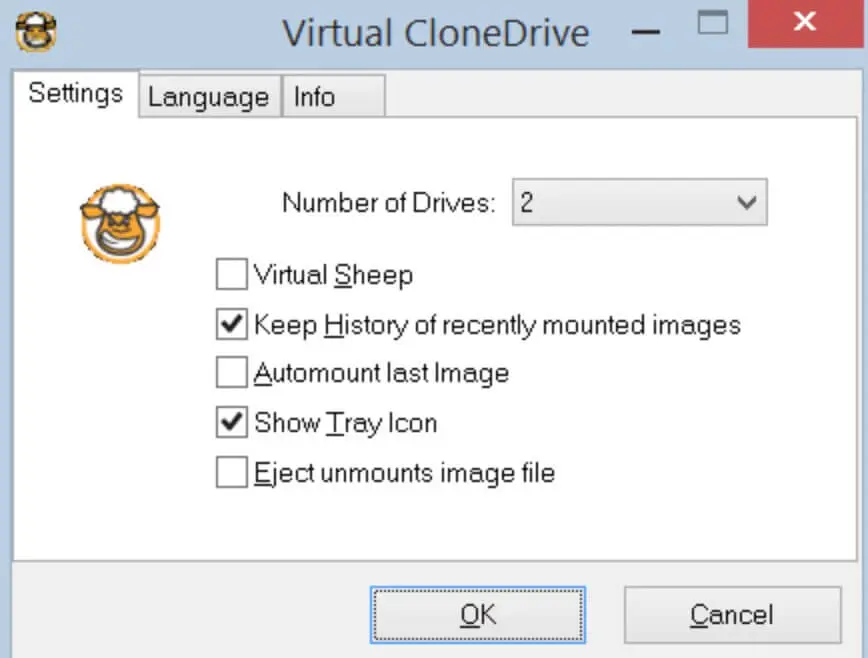
By default, this application includes one virtual drive that is active. However, you can increase the number of drives since it can support up to 15 virtual drives simultaneously. Adding an active drive is quite easy from the main screen of the app. The number of drives you can use depends on how many images you intend to mount.
If you want to mount two ISO images at once, you will need to enable two virtual drives beforehand. Although you can double-click to mount a single image, this method won’t work for mounting two or more images. Instead, you will need to do this through the context menu.
3. History of Mounted Images
This application includes a history feature that tracks mounted images. Each time you mount an image, it gets logged in the recent history of mounted images. This enables you to quickly locate the image when necessary.
However, as you continue, the history may become cluttered with mounted images, making it challenging to find a specific file. Alternatively, you have the option to clear the history, so locating a file won’t be overwhelming. You can also choose to disable this feature if you prefer.
4. Easy Unmount
With Virtual CloneDrive, unmounting images is straightforward using the eject button. Just double-click the image you wish to unmount and choose Eject. But what do you do if you want to unmount multiple files simultaneously?
This application simplifies the process for you. The fastest method to unmount all files at once is by disabling all virtual drives. This will enable you to unmount all images directly from the app’s main window.
5. Integrated to Windows Explorer
Not many virtual drive applications offer integration with Windows Explorer, but this one stands out. You can conveniently mount images with effortless integration in the Explorer context menu, enabling you to do so either through the application or directly from Windows Explorer.
Moreover, this application is free and open-source, featuring a straightforward and user-friendly interface. Whether you are a beginner or an expert, this tool is extremely easy to navigate.
You may also interested in Visual Studio Code (32bit) and Download UC Browser for PC for that you can visit our website.
Why Choosing dan Downloading Virtual CloneDrive
This free software allows you to use it without any fees. Whether you’re using it at home, in school, or at the office, this application is available at no cost. Instead of investing in programs with comparable features, Virtual CloneDrive might be your top option.
1. Free of Charge
This free software allows you to use it without any expenses. Whether you’re at home, in school, or at work, this application is provided at no cost. Instead of investing in programs that provide comparable features, Virtual CloneDrive might be the optimal option.
2. No Language Barrier
There’s no reason to be concerned about language when utilizing this tool. It features a multi-language interface that lets you select your preferred language. Options include English, Arabic, Russian, Japanese, Chinese, and various other languages for smoother use.
3. Complete Set of Features
With a comprehensive set of features that enhance its efficiency, simplicity, and usability. You can quickly mount and unmount ISO images within seconds using just one application. It also accommodates various image formats, allowing you to manage multiple images more effectively.
4. Easy to Use
If you need an emulator that is user-friendly, this software might be your best option. It boasts a simple and uncomplicated interface, making it easy to operate.
Ultimately, Virtual CloneDrive serves as an excellent virtual emulator for mounting ISO images on Windows computers. With its straightforward interface and user-friendly features, it is suitable for both novices and experienced users.
![Windows 10 Version 1511 Build 10586 ISO Download [Feb 2016 Update]](https://www.filehippopc.online/wp-content/uploads/2021/05/35831134-logo-of-the-new-os-windows-10-by-company-microsoft.jpg "Windows 10 Version 1511 Build 10586 ISO Download [Feb 2016 Update]")